How do I connect the BYD digital key?
If you have an iPhone, setting up your BYD digital key is quick and easy. Here is how to do it:

First, open the BYD App and tap on the “Digital Key” tile. On the next screen, choose “Add a Digital Key.” Then, tap “Accept BYD APP Digital Key User Service Agreement” at the bottom. Finally, hit the “Add now” button.
You can also add it to your Apple Wallet for quick access to your NFC car key. Once you have done the steps above, tap “Continue” on the Apple Wallet screen. Next, put your iPhone in the car’s phone tray to activate the key. Once the main digital key is active, you can take your iPhone out of the tray.
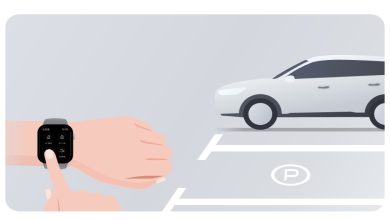
You can use the BYD Digital Key on an iPhone XS or later, and an Apple Watch Series 5 or later.
Here’s how to set up your BYD Digital Key on a Samsung Galaxy phone.
If you have a Samsung Galaxy, you can easily use your BYD digital car key for safety and convenience. It lets you access your car remotely. Just follow these steps:
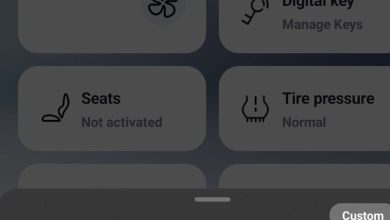
- Open the My BYD App and tap on the “Digital Key” button.
- On the next screen, choose “Add a Digital Key”.
- At the bottom of the screen, tap “Accept BYD APP Digital Key User Service Agreement”.
- Then, tap the “Add now” button.
Adding the BYD Digital Key to your Samsung Wallet
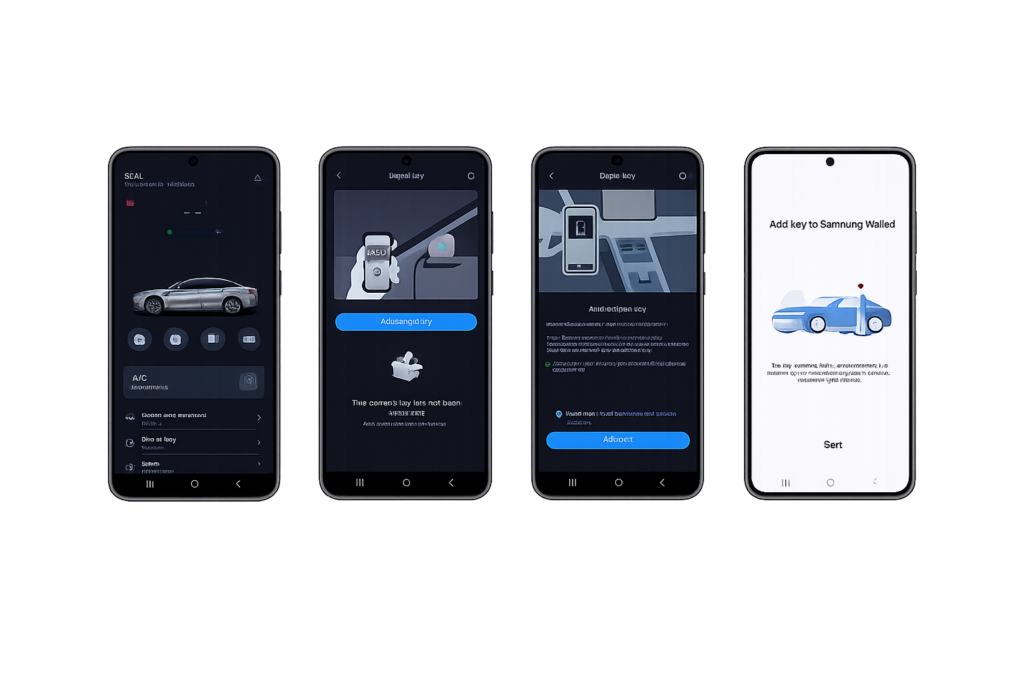
Once that’s done, you’ll want to add it to your Samsung Wallet for quick access. Here’s how:
- After you’ve done the steps above, tap “Start” in the Samsung Wallet screen. It will take a moment to add. To finish setting up the Digital Key, put your Samsung Galaxy phone on your car’s phone tray.
- Once the main NFC car key is active, you can take your Samsung Galaxy phone off the car’s phone tray.
The BYD Digital Key works with many Samsung Galaxy phones, including the S24, S24+, S24 Ultra, S23, S23+, S23 Ultra, S23 FE, S22 5G, S22+ 5G, S22 Ultra 5G, S21 5G, S21+ 5G, S21 Ultra 5G, S21 FE 5G, S20, S20 5G, S20+, S20+ 5G, S20 Ultra 5G, Note20, Note20 5G, Note20 Ultra, Note20 Ultra 5G, Z Fold5 5G, Z Fold4 5G, Z Fold3 5G, Z Fold2 5G, Z Flip5 5G, Z Flip4 5G, Z Flip3 5G, and Z Flip 5G. This means you can use the electronic car key with most recent Samsung phones.
Right now, it works in these European countries: UK, Spain, Italy, France, Germany, Sweden, Denmark, Finland, Norway, Switzerland, and Poland.
Here’s how you can set up your BYD Digital Key on your Google Pixel phone. It’s pretty straightforward and makes it easy to get into your car remotely.

First, open the BYD app and tap on “Digital Key.” On that screen, choose “Add a Digital Key.” Then, at the bottom of the screen, tap “Accept BYD APP Digital Key User Service Agreement.” Finally, hit the “Add now” button.
To make using your digital car key even more convenient, you can add it to Google Wallet. After you’ve finished the steps above, just wait for your phone to get ready. You’ll need to place your Pixel phone on your car’s phone tray to finish activating the Digital Key. Once the main smart car key is active, you can take your Pixel phone off the tray.
The BYD Digital Key works with Pixel 6, 6a, 6 Pro, Pixel 7, 7a, 7 Pro, Pixel 8, 8a, 8 Pro, and Pixel Fold phones.