OWNER ANSWER
BYD QR code not showing? Checks before pairing
If your BYD has never appeared in the app, ask the supplying dealer to confirm cloud activation and the email registered for the car before trying to scan again. A verification code sent by email is for the app account; it is different from the vehicle-pairing QR code on the car’s screen. If a previous owner is still linked, ask BYD to correct the ownership record.
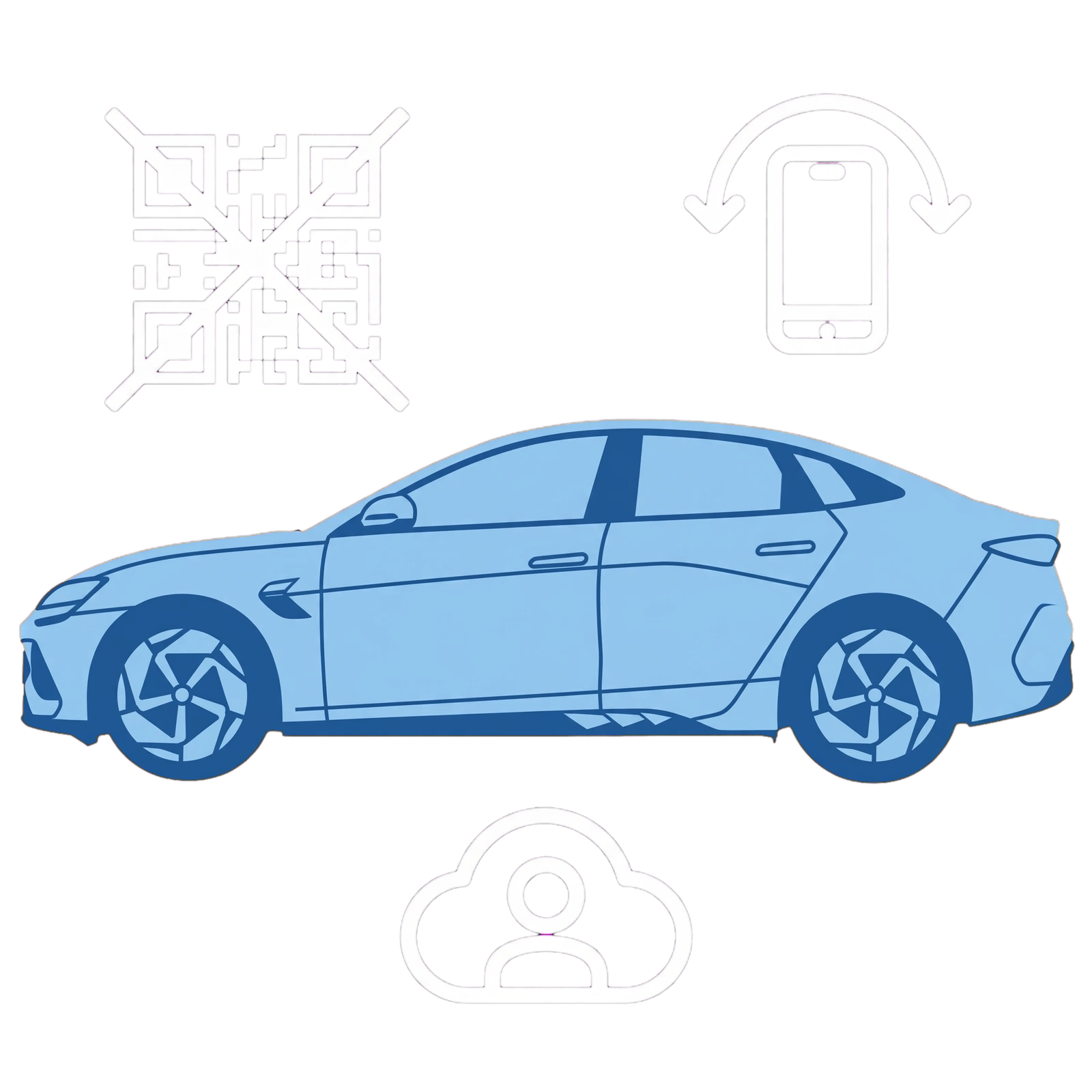
- Ask the supplying BYD Store to confirm activation and that its owner email matches your app account.
- Check the centre display’s data connection, date and time.
- Open the car’s account, connectivity or app-linking area and look for its vehicle QR option. The location differs by model and software.
- Sign in to the current UK BYD app with the correct region and account email, and allow camera access for pairing.
- Restart the app and the normal vehicle session once, then check the linking screen again.
What to expect
The confirmed owner account binds to the correct car and the app shows that vehicle. A visible QR code alone does not prove dealer activation or account binding is complete.
If that did not work
If activation is confirmed but pairing still fails, ask BYD to check the VIN, owner binding and rejected or missing QR screen. BYD UK Customer Service is listed as 00800 10203000, option 1, or +44 20 3307 2546 where the freephone number is chargeable.
What to note down for support: Have the model, supplying BYD Store, owner name, account email, app version, VIN and a private screenshot ready. Keep QR codes, VINs and one-time codes out of public posts.
Used cars and previous owners
Contact the seller and BYD through an official private channel if a previous owner remains linked. Have purchase evidence and the account email ready. Authorising a family member and transferring ownership are different processes.
No activation email?
BYD says it sends neither an “app ready” confirmation nor an emailed activation link. The supplying dealer follows the standard cloud-service activation process.
Which code is the app asking for?
For an email verification code, check the inbox and spam folder for the email registered with the dealer. For a vehicle-pairing QR code, use the car’s linking screen and have the dealer confirm activation if it is missing. An operation password is for remote controls; use My Account → Settings → Remote Control Verification to change it, or choose Forgot your password there if needed. Labels can change with app versions.
Related links
Source: BYD Europe FAQ · BYD Europe App Community: owner binding and Authorisation · BYD UK Customer Service. Checked 22 October 2026.
Activation and code guidance: BYD Europe FAQ; customer-service option checked against BYD UK contact details, 13 November 2026.