OWNER ANSWER
BYD app UK: download, setup and owner fixes
Install the official BYD app, sign in with the account registered for your car and complete the vehicle-linking process. Once the vehicle status refreshes, try the supported remote functions beside the car.
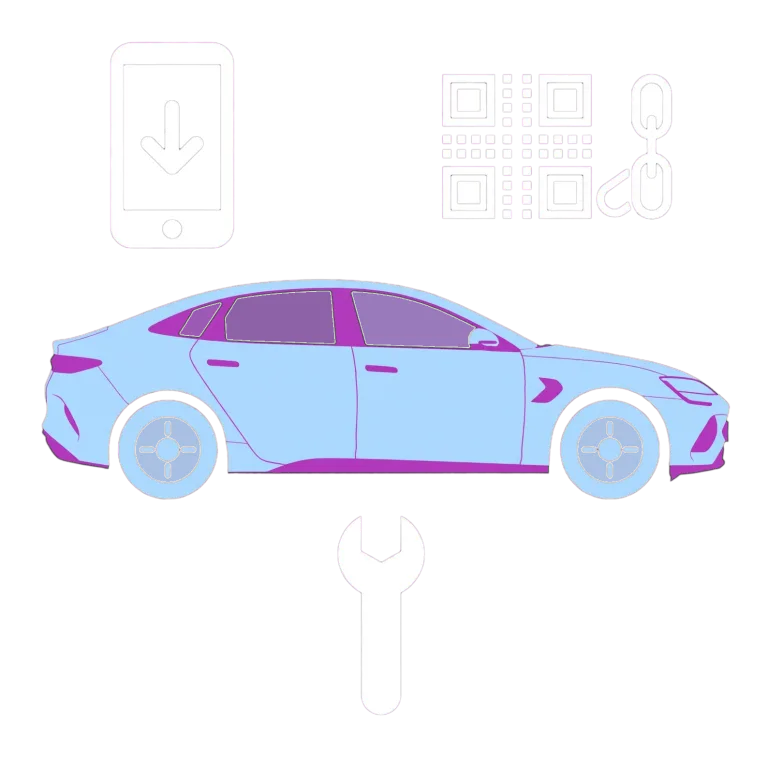
- Install the official BYD app from your phone’s app store.
- Create or sign in to the account registered for the vehicle. Safety note: Keep the physical key with you during setup and check the surroundings before operating remote locks or climate controls; a command can affect people around the car. Passwords and one-time codes stay with you.
- Allow the permissions needed for the function you want.
- Link the correct vehicle using its supported in-car or ownership process.
- Refresh the status and check it matches the car.
- Test the remote functions shown for your vehicle while standing beside it.
What to expect
The app shows your correct vehicle, refreshes its status and completes a supported remote action. Confirm the action on the car before relying on remote access.
If that did not work
If the wrong vehicle appears, ownership cannot be verified or a previous owner remains linked, ask the retailer or BYD support to correct the ownership record. Include the app version, phone type, vehicle software and exact error through an official private channel.
If the car is already linked and another person needs access, use Vehicle Authorisation to share the BYD app. If you’re still linking the car, find the pairing QR code.
Which functions should I see?
Vehicle status and remote controls depend on the car, account, cloud service, equipment and software. Use the tiles available for your own car; another owner’s screenshot may show different functions.
Related links
Source: BYD Europe official source. Checked 22 October 2026.