Uncategorised
How to update your BYD electric car software
EVDeal.co.uk - your EV saving platform
Checking for Over-The-Air (OTA) updates on your BYD electric car such as the BYD Atto 3, Seal, Dolphin or Sealion 7 is a straightforward process. Here’s how you can do it:
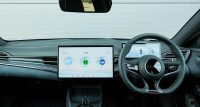
Method 1: Using the Infotainment System
- Turn on your vehicle (or keep it in Ready Mode if applicable).
- Go to the Settings Menu:
- Tap the gear icon or swipe to find the Settings option on the infotainment screen.
- Navigate to the “Vehicle” or “System” Section:
- Look for options like “Software Update”, “System Update”, “OTA Update” or “Version”.
- Check for Updates:
- Select “Check for Updates” or a similar option.
- If an update is available, follow the on-screen instructions to download and install it.
- Install the Update (if available):
- Ensure the car is parked and connected to Wi-Fi (if required).
- Some updates may require the vehicle to be plugged in or have sufficient battery charge(e.g., 30% or more).
Important Notes:
- Stable Internet Connection: Ensure your car is connected to Wi-Fi (if required) for faster downloads.
- Battery Level: Some updates require at least 20-30% battery to proceed.
- Parking Mode: The vehicle should be parked during the update process.
- Automatic Updates: Some BYD models may download updates automatically when idle and connected to Wi-Fi.
What to Do If No Update Shows Up?
- Restart the infotainment system (if possible).
- Ensure your car is registered and linked to your BYD account.
- Contact BYD Customer Support or your local dealership for assistance.