OWNER ANSWER
Why don’t the DOLPHIN SURF Boost cruise gap buttons show a change?
The DOLPHIN SURF handbook identifies the two buttons on the lower left of the steering wheel as the controls for increasing and decreasing the adaptive cruise gap. A UK Boost owner reported that BYD support confirmed their software gave no visible gap feedback. Check your own software version before treating the missing display as a fault.
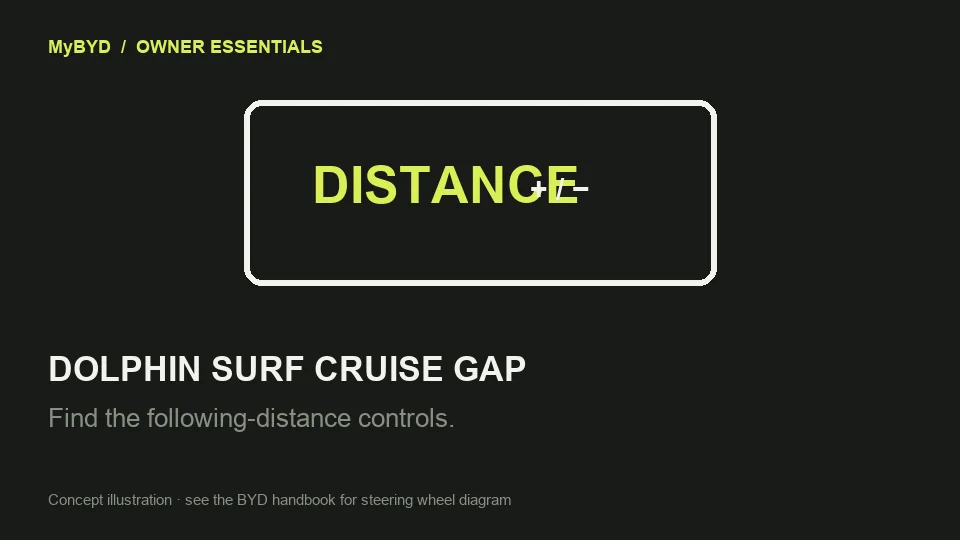
- While parked, identify Distance + and Distance − using the steering wheel diagram. They are numbered 4 and 6 in that diagram.
- If you already use adaptive cruise in suitable conditions, Distance + requests a larger gap and Distance − a smaller one. BYD describes four levels. A level represents a larger distance at higher speeds.
- If the gap display does not change, keep a safe distance yourself and check the software version when parked. Ask BYD if your exact Boost software should show a gap indicator.
What success looks like
Distance + and Distance − are the documented gap controls. On the UK Boost software described by the owner, no graphic appeared. Ask BYD to confirm the intended response for your version if you cannot tell what the buttons did.
If that did not work
If the car fails to maintain a safe gap, brake as needed, take over and leave adaptive cruise off until checked. Tell BYD whether adaptive cruise was active, which button you pressed, any dashboard message and the full software version. Ask them to check the gap-button inputs and whether your car should show a gap indicator.
Stay ready to brake and keep a safe gap yourself. Never close in on another vehicle to test these buttons.
Useful next steps
- Find the Distance + and Distance − steering wheel buttons (BYD UK)
- Read BYD’s DOLPHIN SURF following-distance instructions (BYD UK)
- Prepare the details for BYD
BYD UK DOLPHIN SURF RHD handbook, steering-wheel controls and Adaptive Cruise Control. Checked 13 November 2026.
Open source (BYD UK)