
OWNER ANSWER
BYD DOLPHIN parking camera unavailable, dark or blurred
For a blank or blurred DOLPHIN camera view, park, check the accessible lenses and let the infotainment system finish starting. Then compare the fitted views individually so you can identify which one is affected.
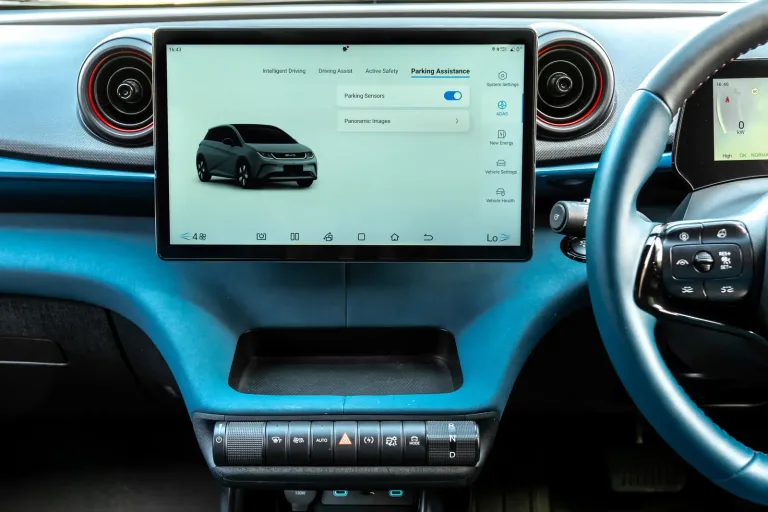
- Park before opening camera controls. Safety note: A black, frozen or distorted picture can hide an obstacle, so use direct observation and mirrors and stop the manoeuvre if the path is unclear. Keep high-pressure jets and adjustment tools away from the lenses to avoid damage.
- Check that doors and the tailgate are closed and mirrors are normally extended.
- Inspect accessible fitted camera lenses for water, dirt, snow, ice or visible damage.
- Clean accessible lenses gently with suitable vehicle-care materials.
- Let the infotainment system finish starting, then open Vehicle View on its home screen or use the steering-wheel camera button. A short delay during startup is different from a view that remains unavailable.
- In landscape orientation, tap the front, rear, right or left area of the car icon on the right to inspect that camera. In portrait orientation, select two areas of the car icon in the lower left.
- Allow one normal shutdown and restart if the view remains wrong.
What to expect
After start-up, the fitted camera views show the surroundings without a persistently black or frozen section. Check any stitched view as well as each camera; the camera image remains an aid alongside direct observation.
The transparent underbody view can initially contain the image saved at the previous switch-off. The handbook says it updates as the car moves and completes after more than one vehicle length. Check the live single-camera views first; do not drive into an unseen area to refresh the stored image.
If that did not work
If cleaning and normal start-up do not restore the view, ask a BYD repairer to inspect the affected camera, connection and alignment. Mention any mirror, bumper, tailgate or body work, impact or accompanying electrical warning. Persistent flicker, changed alignment and repeated unavailability need that check.
What to note down if you need support: affected view, complete message, software version, recent body work and a parked photograph of a persistent fault.
Report whether one view stays black or the screen says “No video signal detected”. The handbook distinguishes an unavailable individual camera from no available camera signal; that is more useful to the repairer than “the screen looks wrong”.
What the result tells you
A brief delay or flashing image during infotainment start-up can occur. Wide-angle fisheye distortion can curve lines; a curve alone does not show that calibration has failed. A sector that stays black or frozen, a tilted horizon or panels that no longer join needs a closer check.
Related links
Source: BYD source (BYD UK) · DOLPHIN handbook (BYD UK) — DOLPHIN RHD 7.2025 EN_V2, separate from SURF; PDF page 136. Checked 22 October 2026.
DOLPHIN Parking Assistance menu pictured; options depend on fitted equipment and software. Images courtesy of BYD UK.
Sources for these checks, reviewed 13 November 2026: Official handbook, PDF page 135 (BYD UK) · Official handbook, PDF page 136 (BYD UK).