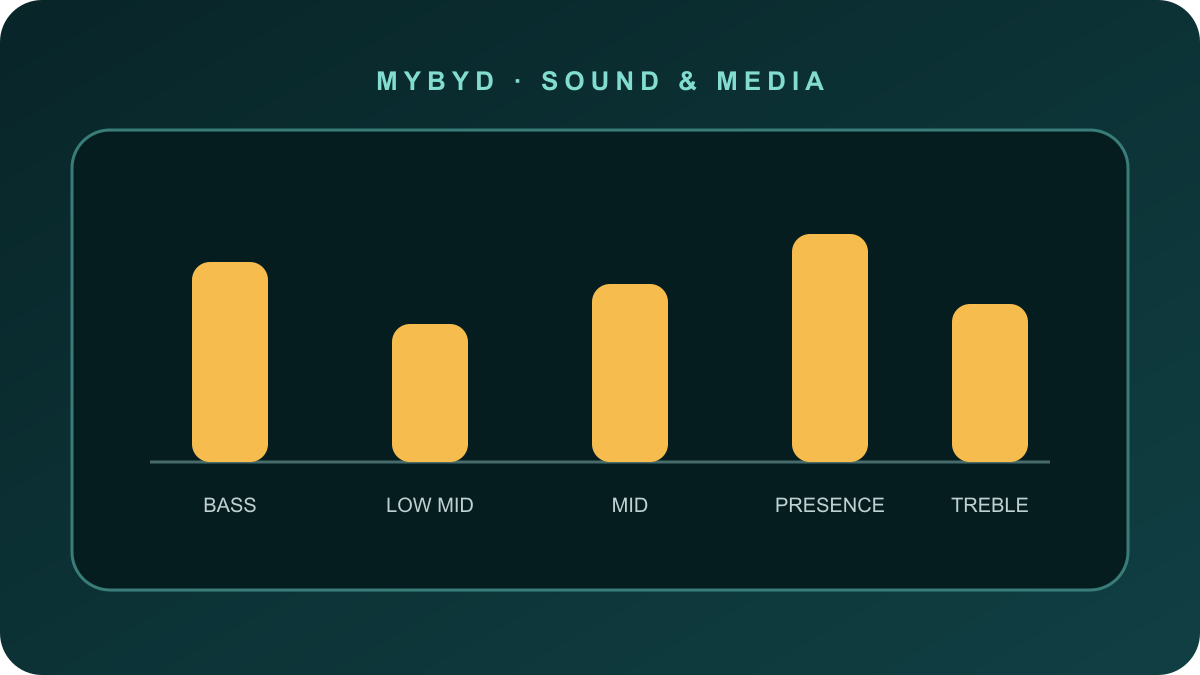
There is no single perfect equaliser curve for every BYD. Speaker systems, cabin shape, software versions and personal hearing differ between models. The reliable method is to begin flat, change one control at a time and compare the same familiar track at the same volume.
1. Set a clean reference first
- Park safely and play a well-recorded song you know.
- Open the BYD audio or sound settings. Menu names vary by model and software version; look for Audio, Sound effect or Equaliser.
- Centre the balance/fader so the sound is not pulled toward one seat.
- Choose Flat, Standard or reset the equaliser to zero.
- If your car offers a sound-field mode such as Stage, Hi-Fi, Concert Hall or Dynaudio processing, compare it both on and off. Keep whichever sounds clearer; it is not automatically better because it has a premium name.
- Set speed-sensitive volume or “volume adjusted with speed” to 0/low while tuning. Add a small amount later only if road noise makes music difficult to hear.
2. Try these visual starting presets
Each block is a relative change from flat. If your BYD only offers Bass, Mid and Treble, combine the two middle suggestions into the Mid control. Do not copy the numbers blindly if your scale is different.
Stop increasing bass if the volume appears to pump down on strong beats or door speakers begin to buzz. Large boosts can use the amplifier’s available headroom and make the whole system sound quieter.
3. Apple Music and CarPlay
- On the iPhone open Settings → Apps → Music.
- Turn Sound Check off for a comparison. Apple explains that Sound Check normalises track volume; disabling it can make quieter-normalised playback seem louder and more dynamic, but tracks may then vary more in level.
- Set the iPhone Music EQ to Off while tuning the BYD equaliser. Two EQ curves at once can make the result harder to diagnose.
- In Audio Quality, choose a suitable streaming quality. Lossless does not guarantee a benefit through every wireless CarPlay path, so prioritise a stable connection rather than chasing the largest setting.
- Play the same passage through CarPlay and then another available source. Match their listening volume before judging quality—louder often sounds subjectively better.
4. Android Auto
Android Auto has no universal “Sound Check” switch. Start with the music app and phone effects:
- Set the phone’s own equaliser, Dolby Atmos, Adapt Sound or other enhancement to Normal/Off for the first test. Names vary by Samsung, Pixel and other manufacturers.
- In Spotify, compare with Normalise volume off and choose a high streaming-quality setting if your data allowance permits.
- In YouTube Music, open Profile picture → Settings → Data saving, then set mobile and Wi-Fi audio quality to High or Always high. Google documents up to 256 kbps AAC/Opus for these modes.
- Tune the BYD equaliser only after the phone is neutral. If Android Auto is still much quieter than DAB or Bluetooth, test a second app and a second phone before resetting the vehicle.
5. If DAB radio sounds poor
- Compare several stations. DAB stations use different bitrates and processing, so one poor station does not prove a car fault.
- Use the Clear speech preset above and reduce, rather than boost, muddy low-mid frequencies.
- Turn off the sound-field effect temporarily. Echo or “concert” processing can make spoken radio less distinct.
- If every source suddenly became distorted after an OTA update, reset the audio settings to flat and restart the infotainment system using the model-specific safe-reset instructions.
- If one speaker rattles on DAB, CarPlay and Bluetooth at modest volume, record the source, frequency range and door location for a BYD retailer.
A fair five-minute comparison
- Use one familiar 30-second passage.
- Keep the car stationary and doors closed.
- Match the volume between sources.
- Change only one setting.
- Listen for voice clarity, bass control and harshness—not simply loudness.
- Save or photograph the final settings so an update or reset does not erase your reference.
Verified references and editorial boundary
Apple confirms that Sound Check normalises playback level. Google documents Android Auto media playback and YouTube Music quality controls. BYD manuals confirm that audio features and speed-adjusted volume are controlled from the infotainment system on supported models. The three EQ curves above are conservative MyBYD starting points, not official BYD presets or laboratory measurements.
- Apple: adjust Music sound quality and Sound Check
- Google: listen to media with Android Auto
- Google: change YouTube Music audio quality
- BYD: SEALION 7 owner manual audio controls
Use the linked manufacturer document or page alongside the instructions supplied with your exact vehicle.
Open official source ↗